Canva enables creative stationery design, and the platform works effectively with traditional letterpress printing. We tested this workflow at Rise and Shine Letterpress and confirmed successful results. Here's the process from digital design to custom letterpress plates.
Step 1: Make a great design
The strongest letterpress outputs feature refined typefaces with ample white space, emphasizing textured paper and pronounced impressions. Canva provides both complimentary and premium templates to accelerate the design process.
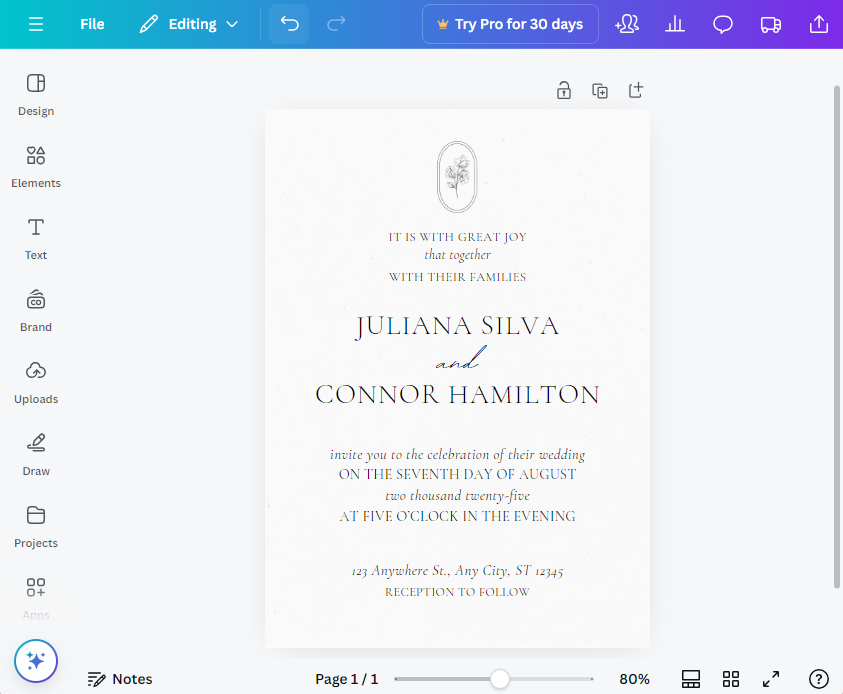
We acknowledge that offering DIY invitation solutions doesn't undermine the stationery industry but rather expands accessibility. Canva serves as an accessible entry point for those considering professional design services before investing in premium software like Adobe Illustrator.
Step 2: Set up for printing
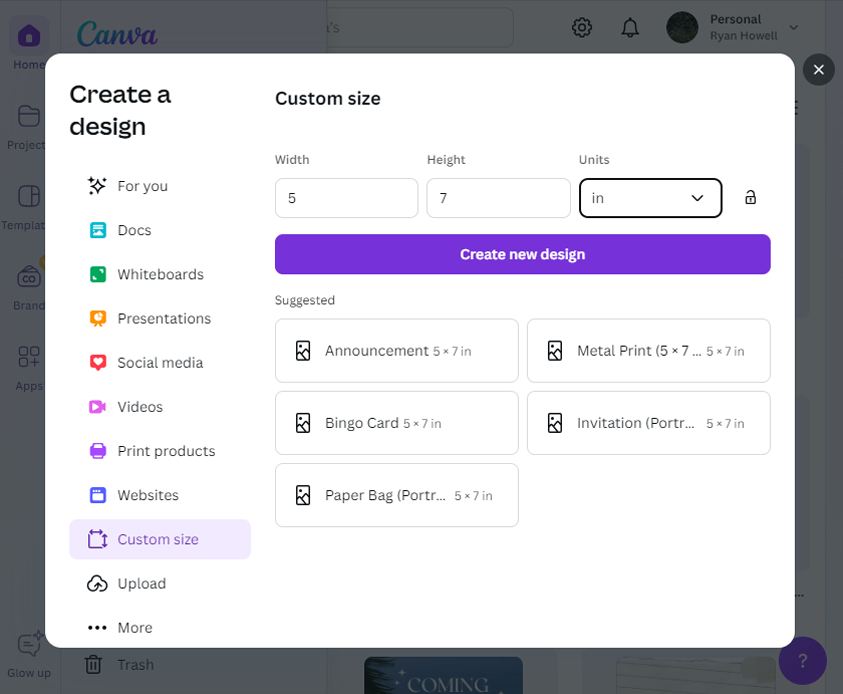
Dimensions are critical for printing success. Our demonstration uses 5 x 7 inches — the standard size for A7 envelopes. Designers should work backward from envelope specifications. An alternative sizing option is 5.5 x 8.5 inches for A9 envelopes.
Access the File menu to view your current document specifications. For new designs, select "Create a Design" and choose Custom Size.
Understanding bleed
"Bleed" refers to extending artwork beyond the trim line to eliminate gaps after cutting. Even Canva's free version supports this feature. Enable it via File > Settings > Show Print Bleed, which displays a black boundary indicating the trim line. This guide won't print but shows where trimming occurs.
Templates without edge-running artwork don't require bleed activation, which is disabled by default.
Step 3: Download your design file
Once your design is complete, export a letterpress-compatible PDF. Navigate to Share, then Download.
Configure your download settings as follows:
- Select "PDF Print" as file type
- Enable "Crop Marks and Bleed" checkbox
- Disable "Flatten PDF" option
- Note: Color Profile displays RGB mode (CMYK is preferred but requires paid Canva — we can convert during pre-press)
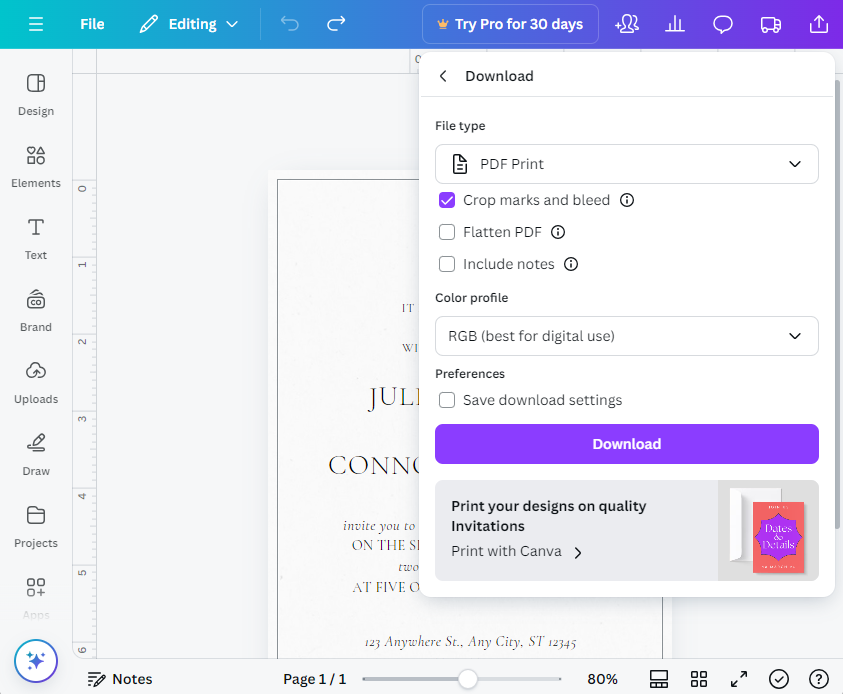
These settings generate vector-based output, permitting Adobe Illustrator editing for letterpress preparation. Vector format is essential since letterpress plates demand extremely high resolution — artwork remains crisp and unpixelated even when zoomed significantly.
Final thoughts
Canva provides practical print-design tools including bleed, crop marks, and vector PDF export capabilities. While limited in vector illustration creation, it accommodates template library graphics repositioning and resizing.
We recommend print proofing before professional printing — output on a standard printer with crop marks, hand-trim with an X-Acto knife, and verify appearance and spelling. Physical proofs reveal sizing differences between screen and printed versions.
Upon submission, Rise and Shine Letterpress reviews every design for printability, flagging concerns and suggesting adjustments during PDF proofing before plate production. We're always happy to help with file setup — just ask.